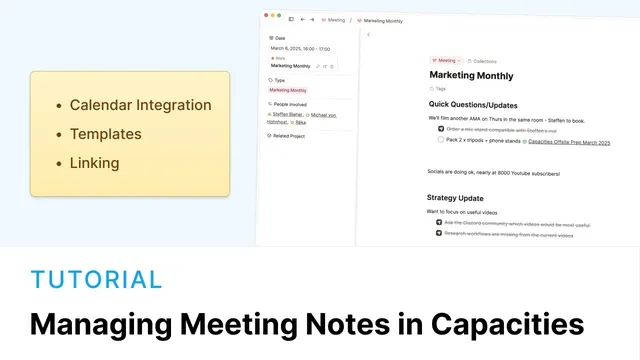
Master your Meetings with Capacities
Based on Capacities's video on YouTube. If you like this content, support the original creators by watching, liking and subscribing to their content.
Define meeting object properties (at minimum date, people, and project) so meeting notes stay consistent and can sync with calendar feeds.
Briefing
Meeting notes become far easier to manage when they’re treated as structured objects—complete with predictable fields, reusable templates, and tight links to the rest of a workspace. Capacities’ built-in “meeting” object type starts with properties like date, people, and project, plus optional tags for meeting categories (standup, one-to-one, annual review). That predictable structure matters because it enables consistent capture and makes later retrieval and automation possible, especially once the number of meetings grows.
From there, meeting types can get their own templates. A one-to-one with Stefan or Michael typically follows a different rhythm than a monthly group marketing meeting, so templates let users predefine headings and even pre-fill properties like the meeting type and the specific people involved. Loading a template inserts the block structure and fills in the relevant fields, while keeping everything editable. Capacities also distinguishes between editing the object type (which updates past, present, and future meeting notes) versus editing a template (which only affects meeting notes created using that template going forward). The result is a balance: enough structure to be reliable, but flexible enough to adapt when workplace needs change.
The workflow extends into calendar context through a two-way integration for Google or Outlook (available to Pro or Believer users). A central calendar feed shows events happening today in selected spaces, and each event can spawn a linked Capacities object via a “plus” action. Because the sync is two-way, changing the time inside Capacities updates the external calendar, and disconnecting an event preserves a link to the original external entry. The calendar feed also supports creating future events from any object type that includes a date property—useful for blocking time on a project or capturing “catch-up” topics tied to a person.
After meetings, templates help with preparation and synthesis. For a recurring “marketing monthly” meeting, the template can include recurring quick questions that get filled in ahead of time. Notes can be taken however someone prefers—handwritten or typed—because the real value comes from what happens afterward: summarizing decisions, turning agreed outcomes into tasks, and linking actions back to the relevant projects or task managers. Capacities supports backlinks so tasks and follow-ups retain their original meeting context; for example, an offsite decision can generate tasks sent to Todoist while other items link back to an “offsite prep” project with a clear “why” and source.
When notes pile up, an AI assistant can summarize selected content, extract takeaways, and even identify tasks. Meeting notes also work as a place to record questions for later—such as “ask Stefan which microphone he has”—so reminders surface in daily notes and appear in the person’s backlinks. Beyond meetings, the same linking logic applies: meeting-derived information can be copied into project updates or attached to a person’s page when new details emerge. Finally, meeting notes can be viewed and organized with sorting, saved queries, and pinned dashboards by meeting type, making large meeting histories navigable rather than overwhelming.
Cornell Notes
Capacities turns meeting notes into structured objects so they can be captured consistently and reused across time. Users define meeting properties (date, people, project, optional tags) and then create templates per meeting type, such as one-to-one versus monthly marketing. Templates can pre-fill properties and insert predefined headings, while edits to the object type affect all meetings and edits to templates affect only future uses. Calendar integration (Google or Outlook for Pro/Believer users) provides a two-way feed for today’s events and lets users create linked meeting objects from calendar entries. After meetings, notes become actionable by summarizing decisions, generating tasks (e.g., to Todoist), and using backlinks to preserve the original meeting context for follow-ups.
Why does defining meeting properties early make later workflows easier?
How do templates change the way different meeting types are handled?
What’s the practical difference between editing an object type versus editing a template?
How does calendar integration connect meetings to the rest of a workspace?
How do meeting notes become actionable instead of staying as raw text?
What role does AI play when meeting notes are messy or lengthy?
Review Questions
- What fields would you include as properties for a meeting object, and how would you use tags to differentiate meeting types?
- How would you decide whether to edit the meeting object type or edit a specific template? Give an example of each.
- Describe a workflow that turns meeting notes into tasks while preserving context using backlinks.
Key Points
- 1
Define meeting object properties (at minimum date, people, and project) so meeting notes stay consistent and can sync with calendar feeds.
- 2
Use tags to categorize meeting types like standup, one-to-one, and annual review for faster retrieval later.
- 3
Create separate templates per meeting type to predefine headings and pre-fill properties, reducing setup time and improving consistency.
- 4
Understand the scope difference: object type edits apply to all meeting notes, while template edits only affect future notes created from that template.
- 5
Set up Google or Outlook calendar integration (Pro/Believer) to get a two-way feed for today’s events and create linked meeting objects from calendar entries.
- 6
After meetings, convert decisions into tasks and links, using backlinks so follow-ups retain the original meeting context.
- 7
Use AI summarization for large, messy note sets to extract takeaways and tasks without manually reorganizing everything.