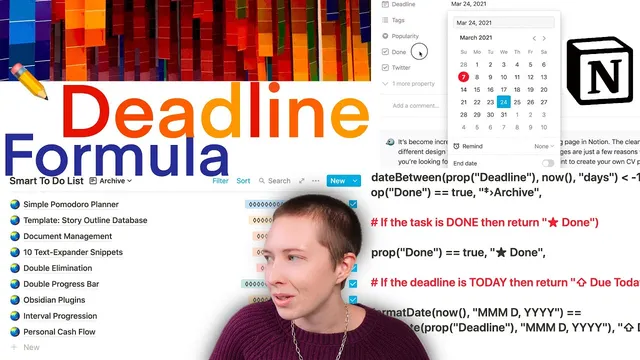
Notion Build With Me: Smart Deadline Formula
Based on Red Gregory's video on YouTube. If you like this content, support the original creators by watching, liking and subscribing to their content.
Use only two properties—deadline (Date) and done (checkbox)—and build the status text from them.
Briefing
A Notion “smart deadline” formula can turn a single Date property plus a Done checkbox into human-friendly status labels—overdue, due today, due tomorrow, due within the coming week (with the weekday), “due next Saturday,” or “upcoming in X days”—while automatically routing completed items into an archive view. The practical payoff is a tasks database that stays readable without manually hiding or moving items, because the formula drives both the text shown in the database and the filters used by multiple database views.
The setup uses only two fields: a date property named deadline and a checkbox property named done. The formula’s logic starts with an override: if the task is marked done, it checks how long ago it was completed. Using Notion’s dateBetween function, it measures the number of days between the deadline and now; if that value indicates the deadline was more than a day ago (i.e., before “yesterday” thresholds), the formula returns “archive,” which is then picked up by an archive database view filtered by an “action ends with archive” condition. This ordering matters because the top condition takes precedence over later ones.
Next comes the “done” path for tasks completed but not old enough to archive. When done is checked and the archive override doesn’t apply, the formula returns “done*” (the transcript uses a star marker), keeping completed items visible in the master list while still allowing the archive view to capture older completed tasks automatically.
For active tasks (done unchecked), the formula builds a ladder of deadline categories. It first detects “today” by comparing formatted dates: because now includes time, it formats both now and the deadline to the same date format and then checks equality. If not today, it checks whether the deadline is in the past; if deadline is less than now, it returns “overdue.”
For future deadlines, it distinguishes tomorrow by calculating day differences and treating the “0 days” edge case caused by time-of-day. If the computed day difference equals zero, it returns “due tomorrow.” For the coming week, it uses dateBetween again and returns a “due on [weekday]” label when the day difference is greater than 0 and less than or equal to 5, where the weekday is generated via formatDate with four lowercase d’s. A separate condition handles exactly one week ahead (day difference equals 6) and returns “due next [weekday]” to avoid confusion when today and the target day share the same weekday name.
Anything beyond a week falls into the final false condition: “upcoming in [number] days.” Because Notion formulas can’t concatenate numbers and text directly, the day count is converted to text using formatDate, then wrapped into a string like “upcoming in 12 days.”
To make the system usable, the transcript pairs the formula with database views: a master view showing everything, an archive view filtered to action values ending with “archive,” a coming-week view filtered to deadlines within the next week (or due today), and a dedicated due-today view. The same approach can be adapted for a date range by using end(prop deadline) so the formula references the range’s end date. Finally, the formula is designed to be plug-and-play: if a database doesn’t already have deadline and done properties, they should be renamed to match, then renamed back afterward.
Cornell Notes
The smart deadline formula in Notion converts a deadline date and a done checkbox into readable status text. It uses an ordered set of conditions where “done long enough ago” returns “archive,” letting an archive database view automatically collect completed tasks without manual moves. For unfinished tasks, it labels items as overdue, due today, due tomorrow, due on a weekday within the next week, “due next [weekday]” exactly one week out, or “upcoming in X days” for anything further. The formula relies on dateBetween for day offsets and formatDate to handle “today” correctly despite now() including time. With matching property names (deadline and done), it can be dropped into an existing tasks database and paired with filtered views for clean dashboards.
Why does the formula start with an “archive” condition tied to the done checkbox, and how does it affect later logic?
How does the formula correctly detect “due today” when now() includes time?
What’s the logic for “overdue” and why is it based on comparing deadline to now?
Why does “due tomorrow” use a day-difference equals zero check instead of equals one?
How does the formula generate “due on [weekday]” and “due next [weekday]”?
How does the formula handle deadlines more than a week away and avoid mixing numbers with text?
How can this formula be adapted when the deadline is a date range instead of a single date?
Review Questions
- If done is checked, which condition must be placed first to ensure archiving overrides other labels, and what filter would capture those results in a view?
- What formatting step prevents “due today” from failing due to now() including time, and how is it implemented in the formula?
- How do the weekday labels differ between the “coming week” condition and the “exactly one week ahead” condition?
Key Points
- 1
Use only two properties—deadline (Date) and done (checkbox)—and build the status text from them.
- 2
Place the “archive” condition at the top so it overrides later labels when done is checked long enough ago.
- 3
Detect “today” by comparing formatted dates (formatDate(now) vs formatDate(deadline)) rather than raw equality.
- 4
Classify overdue with a simple deadline < now check for unfinished tasks.
- 5
Handle tomorrow’s day-difference edge case by treating dateBetween(...) == 0 as “due tomorrow,” relying on the earlier “today” override.
- 6
Generate weekday names with formatDate(deadline, 'dddd') and use separate conditions for within-week vs exactly one week ahead.
- 7
For date ranges, wrap the deadline property with end(prop deadline) so the formula uses the range’s end date.