Notion For Writers: Using Footnotes and New Sync Block
Based on Red Gregory's video on YouTube. If you like this content, support the original creators by watching, liking and subscribing to their content.
Create three linked databases: Scenes (main writing), Chapters (grouping), and Footnotes (structured entries).
Briefing
A writer-focused Notion setup can turn scenes, chapters, and footnotes into a connected system—so footnote entries automatically appear in the right place as new pages are created. The core idea is to split content into three linked databases: one for scenes (the main writing area), one for chapters (to group scenes), and one for footnotes (stored as structured records). Each footnote record is tied to a scene via a relation, and footnote numbers in the scene text link down to the corresponding footnote entry.
The build starts with a “Footnotes” database. It includes a numeric field used to match footnote numbers embedded in the scene body, a description field for the footnote text, and a relation back to the “Writers” (scenes) database so each footnote knows which scene it belongs to. A “Type” select field categorizes footnotes (examples include definition, source, edit later, explanation, and further reading). In parallel, a “Chapters” database is created as a gallery-style view with chapter entries (e.g., Chapter 1, Chapter 2). Scenes then gain a relation property pointing to chapters, allowing multiple scenes to roll up under the same chapter.
To make footnotes show up automatically at the bottom of every scene page, each scene page includes a linked database block pointing to the Footnotes database. The linked block is filtered so it only displays footnotes whose “two scenes” relation contains the current scene. For manual setup, the filter can be set to a specific scene; for ongoing automation, the workflow uses a “new scene” page template. That template includes a linked database block configured to filter by the template’s name (the “new scene” template is used as the key for the filter), ensuring that when a new scene page is created, its footnotes populate without reconfiguring filters.
The system also adds navigation and organization. Views can be sorted or filtered by footnote type (for example, showing only sources), and rollups can surface chapter-level context from footnotes back into chapter cards. A “new chapter” template is introduced to brainstorm outlines/planning while embedding a linked database of footnotes filtered to the chapter relation, effectively creating a chapter index of relevant footnote items.
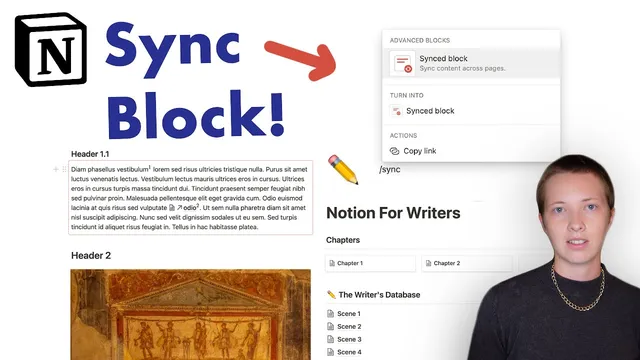
Finally, the workflow demonstrates Notion’s synced blocks. A synced block can be created inside a scene by pasting a block that’s linked to a specific footnote entry; edits to the synced content propagate across all pages where that synced block is active. The tutorial also covers how to unsync blocks when a page should stop sharing updates. The result is a writing environment where footnote numbering, scene placement, chapter grouping, and cross-page synchronization all stay consistent as the manuscript grows.
Cornell Notes
The setup uses three linked Notion databases—Scenes (main writing), Chapters (grouping), and Footnotes (structured entries)—so footnotes are automatically associated with the correct scene and can be browsed by chapter. Footnotes store a numeric “number” field that matches footnote markers inserted into the scene text (e.g., inline equations with the footnote number). Each scene page includes a linked database block filtered to show only footnotes whose relation points to that scene, and a “new scene” template makes this work for future scenes without manual reconfiguration. Rollups and a “new chapter” template extend the system by surfacing footnotes by chapter, enabling chapter-level planning and indexing. Synced blocks then allow selected content to stay mirrored across pages until unsynced.
How does the system connect a footnote marker in the scene text to a specific footnote entry?
What makes footnotes appear automatically at the bottom of every scene page?
How are scenes grouped under chapters in this system?
How can footnotes be organized so a writer can focus on specific categories like sources?
What role do rollups play when building chapter-level indexes?
How do synced blocks change how footnote content behaves across pages?
Review Questions
- If a scene’s linked Footnotes block is filtered by the relation property “two scenes,” what must be true for a footnote to appear in that scene?
- How does the “new scene” template reduce repeated setup compared with manually configuring filters for each scene?
- What’s the difference between using a linked database block and using a rollup when building chapter-level navigation?
Key Points
- 1
Create three linked databases: Scenes (main writing), Chapters (grouping), and Footnotes (structured entries).
- 2
Use a numeric “number” property in Footnotes and insert matching footnote markers in the scene text to keep references consistent.
- 3
Add a relation from Footnotes to Scenes (“two scenes”) so each footnote record knows which scene it belongs to.
- 4
Place a linked database block on each scene page and filter it so only footnotes related to that scene appear.
- 5
Use a “new scene” template so linked database blocks and filters work automatically for future scenes.
- 6
Add a relation from Scenes to Chapters (“chapter”) and use it to filter footnotes for chapter-level views and templates.
- 7
Leverage synced blocks to mirror selected content across pages, and unsync when a page should diverge.